

“Simply brilliant! 10× quicker – what took me 30 minutes to plan a run with 30–40 orders now takes 3 minutes.” — Shlomo Levin, Operations, NSW Liquor Logistics
IN SHORT
Infoware’s Run Planner is a central logistics tool that manages orders from visibility → picking → dispatch → delivery tracking in one system
- Major time improvement: planning 30–40 orders dropped from ~30 minutes to ~3 minutes (≈10× faster).
- Default run sequencing is automatic (suburb → street → address), so dispatchers don’t need to manually sort routes.
- Drag-and-drop + quick move buttons let users instantly reorder deliveries without re-entering data.
- Quick pallet allocation assigns pallet groups in a few clicks instead of manual entry per order.
- Block move feature allows instant reassignment of orders to different runs or dates for load balancing or last-minute changes.
- Planning and warehouse picking can happen simultaneously, removing workflow bottlenecks.
- Visual workflow tracking (colour-coded stages) shows order status at every step.
- System supports multiple picking methods: paper, barcode, tablet, plus discrete and wave picking.
- Generates all delivery documents (manifest, invoices, dockets) in one click.
- Integrated POD (proof of delivery) tracking via app and transport systems.
- Overall impact: significant daily time savings, better operational visibility, and more flexible logistics management.
Table of Contents
- Default Drop Sequence in Runs
- Drag & Drop Reordering
- Quick Pallet Allocator
- Block Moving Orders
- Run Planning While Picking Is Occurring
The Infoware Customer Order Run Planner is a key tool for customer order logistics. It is the central application that manages everything from full order visibility, through to picking, despatch, and proof of delivery (POD) tracking.
The Run Planner sits at the heart of the daily warehouse workflow:
- All current and prior unpicked orders are visible in one page, organised into delivery runs
- Orders must pass credit checks before being released – those on stop credit are quarantined with full visibility until resolved
- Picking can be performed by paper, barcode scanner, or tablet
- Discrete picking (order by order) and wave picking are both supported
- Orders change colour as they move through the workflow: received → submitted for picking → picking commenced → picking completed → manifested → delivered
- A single click generates the manifest, driver dockets, and invoice copies in drop sequence
- POD tracking integrates with Infoware’s sign-on-glass app and supported TMS providers
- The Run Planner is the internal engine; customers track their orders via Infoware’s separate web portal
The Run Planner is not just a picking tool. It is a management platform that gives every team member – from warehouse staff to operations managers to customer service team – a consistent, centralised “one source of truth” view of where every order is at any point in time.
1. Default Drop Sequence in Run
Previously, after assigning orders to a run, dispatchers often needed to manually reorder each drop to create a logical delivery route. This is time-consuming and inconsistent between operators.
Infoware automatically sequences orders within each run by:
- Suburb drop order (geographical routing)
- Then by street within each suburb
- Then by street position (house or business number)
When a run is first opened, the sequence of stop locations already reflects a sensible delivery route – no manual sorting required. Dispatchers can go straight to fine-tuning rather than building the sequence from scratch. For businesses running multiple routes daily with 30–50 stops each, this change alone saves meaningful time every morning.
2. Drag & Drop Reordering
Even with smart default sequencing, adjustments are always needed – a customer who needs early delivery, a tight time window, or a driver’s local knowledge that improves the route. The new drag and drop controls make these adjustments instant.
Three new controls now appear on every order row in the Run Planner:
Drag Handle

Click and hold the drag handle icon to pick up an order and drop it anywhere else in the run. The sequence updates immediately – no re-keying of run order numbers, no save and refresh required.
Move Up

Click once to move an order up one position in the sequence. Click multiple times to move it up several places. Ideal for minor adjustments without needing to drag.
Move Down

Click once to move an order down one position. Same quick-key approach as Move Up.
Together, these three controls give dispatchers complete, instant control over run sequencing without leaving the Run Planner screen.
Run Planner – the new drag handle and up/down quick keys are visible on the left of each order row (yellow highlight)

Each order row showing the full control set: drag handle, move up, move down, and the + button to expand
3. Quick Pallet Allocator
Once the drop sequence is finalised, the next step is allocating orders to pallets. In busy 3PL and wholesale operations, a single truck run might involve 40 or more drops split across multiple pallets. Previously, assigning pallet numbers to each order individually was a tedious process.
The Quick Pallet Allocator reduces this to one click per pallet:
- Click on the first order of each pallet
- Infoware automatically assigns that pallet number to all orders from that point to the end of the run
- Repeat for each pallet break
In the example below, 3 pallets across 40 drops are completed in just 3 clicks. Once pallet allocation is complete, the system is ready to generate each pallet in reverse drop sequence as orders are picked – meaning the last delivery goes on the bottom of the pallet first, so it is accessible last off the truck.
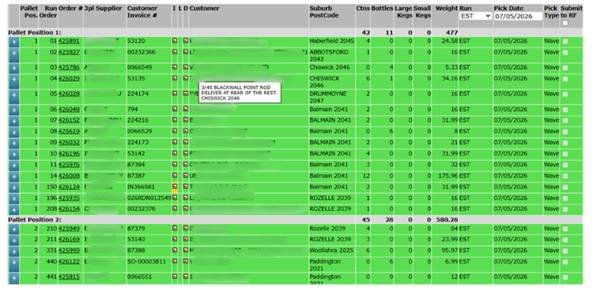
4. Block Moving Orders
Operational reality means plans change. A truck may be overloaded by a late order, a customer may call to postpone, or orders need to be balanced between runs. Block Moving allows one or more orders to be reassigned to a different run or pick date in seconds.
The process is simple:
- Select the order or orders to be moved
- Enter the new run code and pick date
- Save – the orders are immediately transferred
The reassignment is instant and reflects across the system in real time. This is particularly useful for balancing weight loads across vehicles, managing late-arriving orders, or handling same-day changes without disrupting the rest of the plan.
Block Moving Orders – orders are selected and the new run code and pick date fields are filled in before saving

Full Run Planner view showing all orders in the run with total cartons, weight, and drops – useful for load balancing decisions before block moving
The run code and pick date are edited inline – one save and the orders are transferred
5. Run Planning While Picking is Occurring
This is worth highlighting as a reminder: Run Planning does not need to be complete before picking starts. This has always been the case in Infoware – it is not a new feature, but an existing capability that is easy to overlook.
Infoware allows both activities to run simultaneously. While pickers are working through planned orders in the warehouse, the logistics team can continue refining other runs, adding late orders, rebalancing loads, or planning the next day’s runs – all without interfering with active picking operations.
For high-volume operations with tight despatch windows, or businesses where orders continue arriving throughout the day, this flexibility is a significant operational advantage that removes a common bottleneck.
Without Infoware’s Drag n Drop
- Manual suburb and street sorting of 30–40 orders: 20–30 minutes
- Individual pallet number assignment: 5–10 minutes
With Infoware’s features
- Default suburb/street sequencing
- Pallet allocation for 40 drops across 3 pallets: 3 clicks
- Sequence adjustments: drag and drop in seconds
- Planning and picking run in parallel – no bottleneck
As Shlomo Levin from NSW Liquor Logistics described it: what took 30 minutes now takes 3. That is a saving of 27 minutes per run – and for an operation running multiple runs daily, that adds up to hours of recovered time each week.
 The Evolution of the Combo Box: Combining Smart Search, Smarter Selection, and Greater Convenience