

- – Extends the powerful combo box search behaviour with toggle filters and colour
- – Different product status highlighted in different colours for ease of visual identification.
- – Share return to stock availability to remove customer disappointment purchasing products temporarily out of stock and purchase a substitute product.
- – Run out products in stock highlighted to sell these to customers who are not focused on specific alternate products (reduce dead stock potenetial).
- – Toggle between listing all products or only products a customer previously purchased. Display last sale date and qty as an aid.
In Infoware, the combo box is a core part of how everyone uses the system. It appears wherever someone needs to pick something from a list: products, customers, suppliers, employees, debtors, general ledger accounts and more.
For prospective Infoware users you may say it is only a search – WRONG! All users need to quickly find something without necessarily knowing exactly the code or name of what they are searching (or they do but words are defined in a different sequence to expected). This is where Infoware’s combo box comes into its own for finding instantly what you are looking for.
Instead of searching by the beginning of a product code or a word in a description that some systems restrict you to, Infoware’s Combo Boxes allow you to search by multiple parts on any criteria in the list to quickly and easily find what you are looking for.
Two recent additions have been made in the customer order entry extending the combo box product search to provide more information to help you (or your customer) to select the products you require.
Table of Contents:
- First Combo box 101: Type Part of the Product criteria; See the Matching Records
- Keeping Track of Product Stock
- Toggling Between Full Catalogue and Customers’ Previously Purchased Items
- Benefits Across Infoware
First Combo box 101: Type Part of the Product criteria; See the Matching Records
Infoware’s combo boxes are a great search tool. Combo boxes have existed for a long time. When you start typing with every keystroke, the list of available records filters down on entered criteria.
Some users describe it as “google for Infoware”. We think it is better as:
Interactive & immediate response
- Infoware has a direct target e.g. your products; your customers; chart of accounts etc so we are flexible in allowing you to enter multiple search criteria to focus on what records match. Google has the challenge of searching the world based exactly only on the one search criteria entered.
A key part of the combo box functionality is that users only need to type part of what they are looking for. You are not required to enter a full code or an exact phrase. This allows when thousands of products to quickly find matching products.
In product selection, the user might know only:
- the end of a supplier’s part code (“3368B”), or
- the product description e.g. “buck 4l blu” (in any sequence) for list of “bucket 4L blue” products
- or partial combinations of both search criteria “buck 4l blu 3368B” (yes if you entered suppliers part code first you would find it quicker as supplier part code will be unique (within each supplier)
In Infoware, you can type any combination of text for search criteria, in any order. if you are searching for multiple criteria then all you need to do is leave at least one space between each search criteria.
Because this behaviour is consistent system‑wide, staff do not have to learn different search techniques for different Infoware components (another advantage of one system one solution). They learn once that they can type part of what they know and let the Infoware handle the filtering interactively; regardless of if inventory; debtors; creditors; payroll; general ledger)
Combo box fields are identified by indicator

at end of each field.
The date field below is not a combo box field.

Keeping Track of Product Stock
The first new addition builds on the existing combo box behaviour in order entry by product status and quantity on hand directly into the product search.
When a customer is selected and the user begins adding products to an order, the product combo box now does more than list matching products. It now lists the current stock levels; other statuses (by different colours) and when the customer last bought this product and how many.
Infoware legend to explain the various statuses.
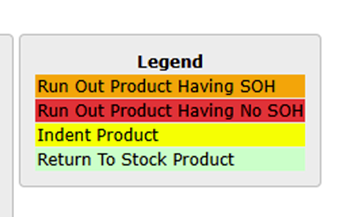
Orange – Run‑out product having stock on hand
Run out products are products that are end of life as either your supplier is discontinuing supplying this product; or you have discontinued carrying the product for whatever reason. Specifically for customers’ orders, run out product drop off combo boxes when qty available is zero (another bit of housekeeping automated). Ideally you wish to sell this stock where possible – to remove from dead stock and when all sold provides a new slot in warehouse to use for more profitable stock. Then orange coloured Run Out Product with SOH is ideal to sell down if customer does not have a brand preference.
Red – Run‑out product with no stock on hand
These items are discontinued and are already zero stock. They do not appear on customer order entry or supplier purchase order product combo boxes. They can be selected other apps such as soh apps.
Yellow – Indent product
These products are not normally kept in stock and must be purchased only when a customer has placed an order; or included in a forecast. When they appear in search results, staff can see at a glance that these products must be purchased with supplier lead times and possible minimum order levels for freight included or not. This handles the special products you buy in for a customer; but are excluded from automatic purchasing as you do not wish to reorder these in stock as a one off sale
Green – Return‑to‑stock product
Sometimes suppliers have advised that they are out of stock ‘to end of next month’ for a product. The expected return to date is entered and displayed now on customer order combo box as well as stock level app so all your team including customers know when to expect it back into stock. If there is remaining stock available, then it can be sold; but once the QOH is zero then the customer knows it cannot be supplied because supplier is out of stock and they either have to wait or purchase an alternative product
Blue – Products previously purchased by the current customer
Blue colour identifies products customers has previously purchased with date of sale and qty purchased bought. This helps them with what was the “chemical or bag” I purchased a few months ago.
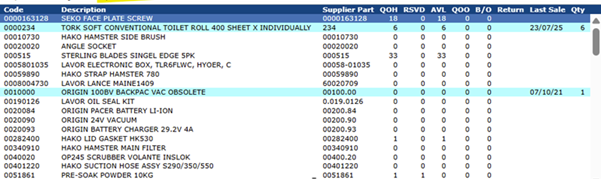
Toggling Between Full Catalogue and Customers’ Previously Purchased Items
The second new addition gives users more control over how much history they see with customers who have a large buying range.
By default, Infoware displays a page of previously purchased products. This is great for customers who purchase up to 20 -30 products. Client feedback is especially for 100+ product is this approach is ‘clunky’ finding product and entering qty.
To manage this, the product combo box includes an option to toggle between searching all products or only those purchased by the customer – plus the ability to limit/remove the order history template listing all previous purchased products.
With the option turned on (yellow highlight), the combo box list is restricted to products that the selected customer has purchased before.
Benefits Across Infoware
This evolution strengthens a great tool that is already used every day. Staff can still experience the familiar behaviour— type part of what you know, watch the list interact dynamically—but now benefit from richer context and more control in key workflows such as order entry.
Colour highlights various product status when not a ‘normal’ product.
Adding a toggle that dynamically toggles between all products and only those that customers have purchased.
Using smart filters & colour status to other apps will be added. If you have a suggestion please let us know ()
 Building a Safer Workplace with First Aid Training